M635e Setup
The Particle M635e is the satellite-capable member of the M-SoM family. It adds Non-Terrestrial Network (NTN) connectivity on top of the same LTE-M, 2G, Wi-Fi, BLE, and GNSS capabilities you get from a standard M-SoM, so a single module can operate on cellular or over satellite.
You set up the M635e the same way you set up any M-SoM, on either a Muon carrier board or an M.2 SoM breakout board, as covered on the M-SoM Setup page. The one difference that matters for satellite operation is the antenna. The M635e requires an external NTN antenna with a clear, outdoor view of the sky.
Before you begin
Have the following on hand:
- The M635e module, which ships with the GNSS and Wi-Fi/BLE antennas.
- A Muon carrier board or an M.2 SoM breakout board (sold separately).
- The Particle NTN antenna (PARANTCN1EA), available from the Particle store.
- A U.FL to SMA adapter, which is included with the M.2 SoM breakout board and obtained separately for Muon.
- A USB cable and power for your board.
The NTN antenna
An M-SoM exposes U.FL connectors for LTE, Wi-Fi/BLE, and GNSS. The M635e keeps the same connector layout, except its LTE connector is dual purpose, carrying both LTE and IoT NTN.
NTN uses dedicated satellite bands that the standard cellular antenna does not cover, so satellite operation requires the Particle NTN antenna (PARANTCN1EA). It serves both LTE and NTN, so it replaces the wide-band cellular antenna on the LTE connector rather than adding a second one.
The NTN antenna terminates in an SMA connector, so it connects to the U.FL LTE connector through a U.FL to SMA adapter.
Because a satellite link needs an unobstructed path to the sky, the NTN antenna is designed to be mounted outdoors with a clear view overhead. For full specifications, dimensions, and compatibility, see the antenna reference.
Depending on your application you may also connect the GNSS antenna and the Wi-Fi/BLE antenna, exactly as you would on a standard M-SoM.
Using the M635e with Muon
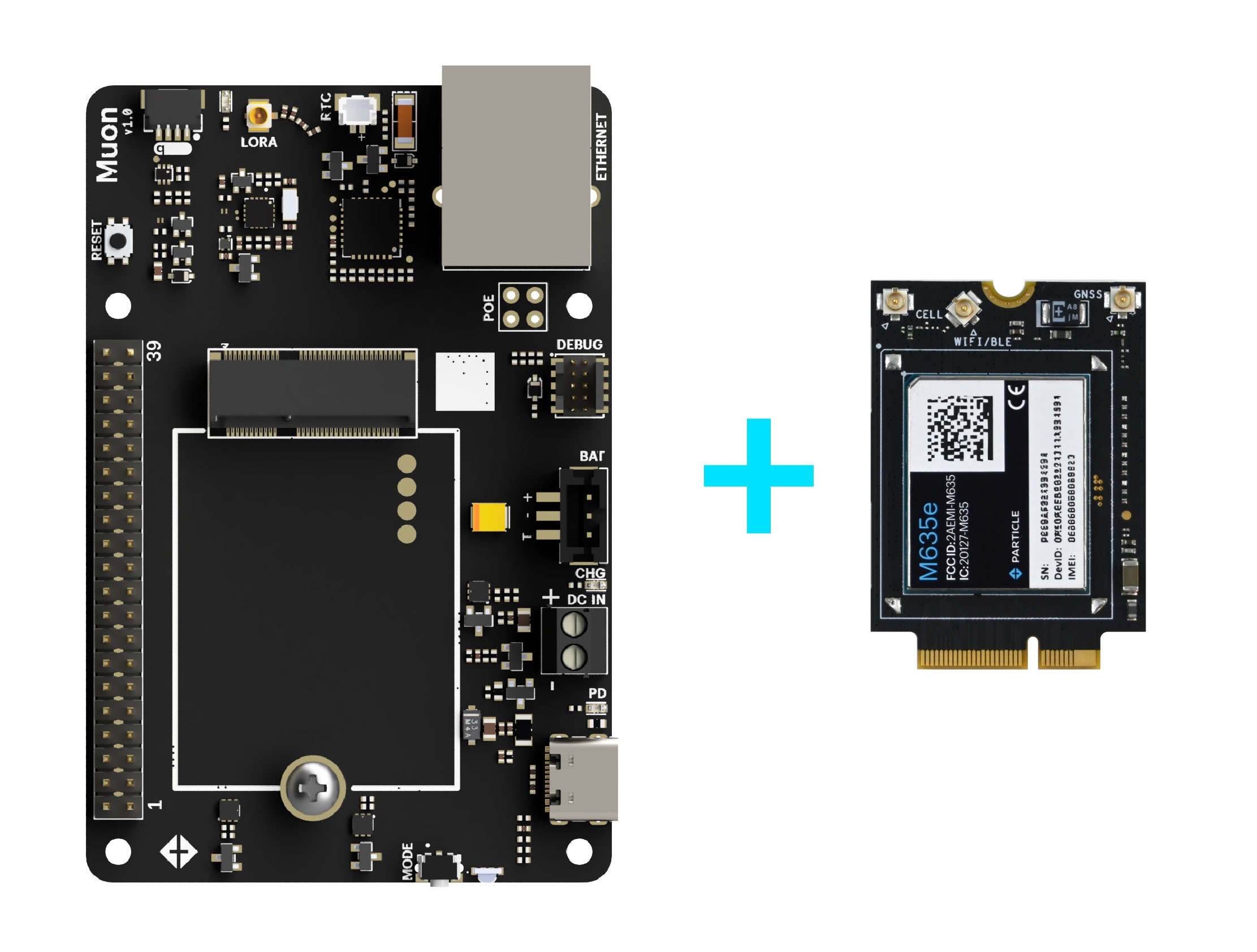
- Install the M635e onto the Muon carrier board. See the Muon setup guide for detailed assembly instructions.
- Fit the U.FL to SMA adapter (not included with Muon) to the cellular U.FL connector, then attach the NTN antenna to the adapter. Connect the GNSS and Wi-Fi/BLE antennas if your application uses them. The antennas must be connected before you apply power.
- Power the Muon and connect it to your computer with a USB-C to USB-C cable. A USB-A to USB-C cable cannot power the Muon.
Using the M635e with the M.2 SoM Breakout Board
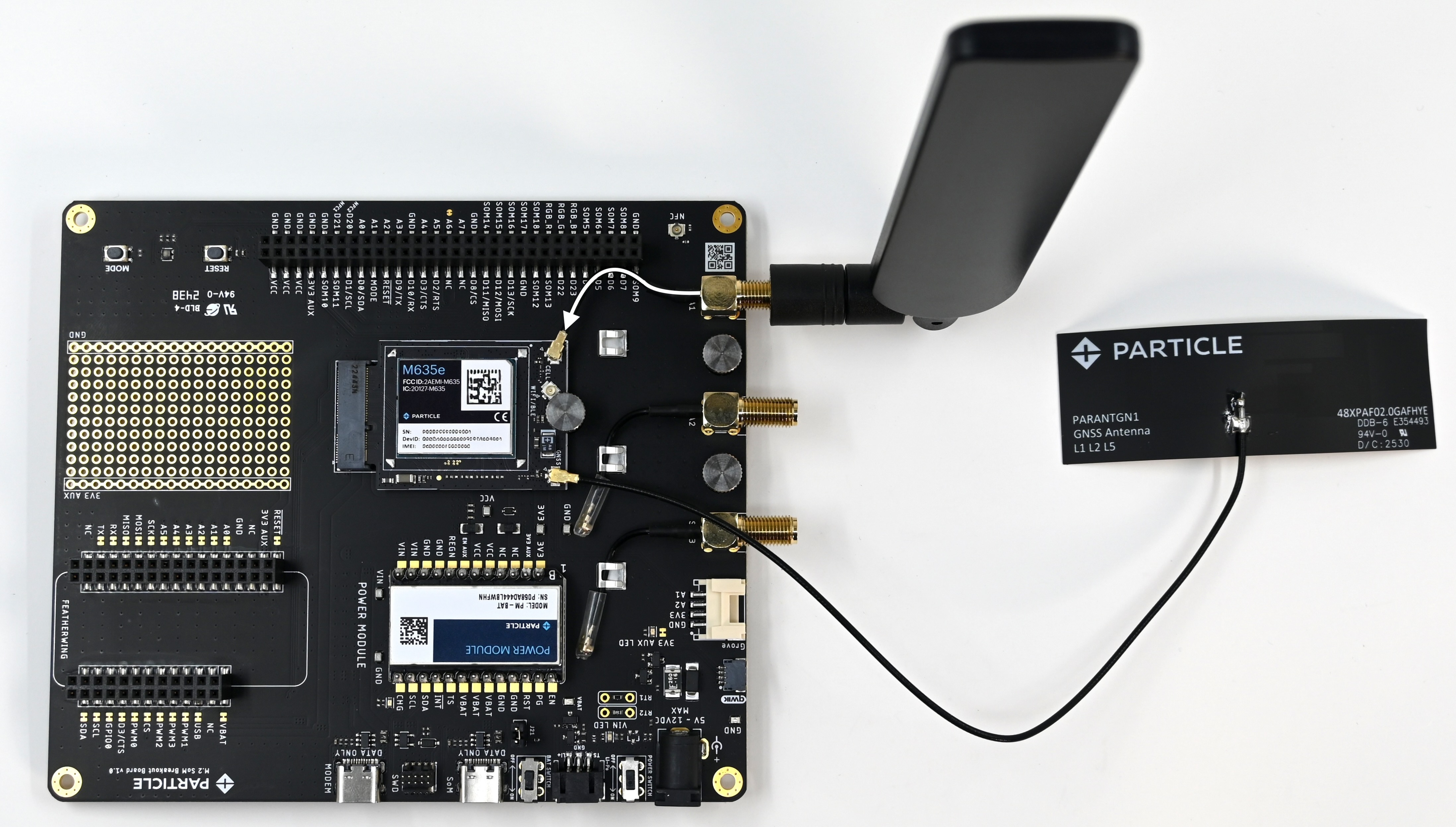
- Insert the M635e into the M.2 socket on the breakout board.
- Fit the U.FL to SMA adapter (included with the breakout board) to the cellular U.FL connector, then attach the NTN antenna to the adapter. (See the white arrow in the image above.) Connect the GNSS and Wi-Fi/BLE antennas if your application uses them. The antennas must be connected before you apply power.
- Install the power module on the breakout board.
- Power the board with the supplied AC/DC power adapter.
- Plug in the battery.
- Connect the breakout board to your computer using a USB cable.
Finish up at setup.particle.io
After the physical assembly is done, go to setup.particle.io and follow the guided instructions to claim your device and finish setup. This step installs the eSIM profiles the M635e needs, including the NTN profile for satellite roaming, and it is where you enter the device's fixed location. Once the device is claimed, move it outdoors with a clear view of the sky to establish its first satellite connection.
NTN requires the device to know its own position before it can attach to the satellite network. The guided setup at setup.particle.io prompts you to enter the device's fixed location. See NTN troubleshooting for details.
Once your device is outdoors and searching for satellite, the onboard RGB LED shows its progress:
- Solid green: the device is searching for a satellite. This is normal, and it can take up to 10 minutes on the first connection.
- Solid cyan: the device has connected over satellite. You're online.
- Blinking red: the device hit an error and is restarting itself. If it persists, check your antenna connection and sky visibility.
First attach is the slow one, so give it time with a clear view of the sky before assuming something is wrong. If the LED stays solid green for much longer than 10 minutes, it's almost always antenna placement or sky view. See Antenna placement and line of sight below.
Antenna placement and line of sight
Antenna placement is the single most common cause of NTN connection problems. A satellite link will not attach without a clear path to the sky.
- Place the NTN antenna outdoors with an open view overhead.
- Keep it away from buildings, roofs and overhangs, dense foliage, metal enclosures, and vehicle cabins, all of which block or attenuate the signal.
- A window is usually not sufficient for a satellite connection.
NTN operates from the fixed location you enter during setup and is not designed for use while the device is in motion.
For placement guidance, requirements, and common failure causes, see NTN troubleshooting.
To understand how Particle NTN works end to end, what it can and cannot do, and how to put a device in the field with the M635e NTN blueprint, see the NTN Overview.