Wireless Connectivity on Tachyon
Tachyon features a Qualcomm QCM6490 chipset, which includes an integrated Wi-Fi 6E module. This provides high-speed, low-latency, and efficient wireless connectivity over PCIe.
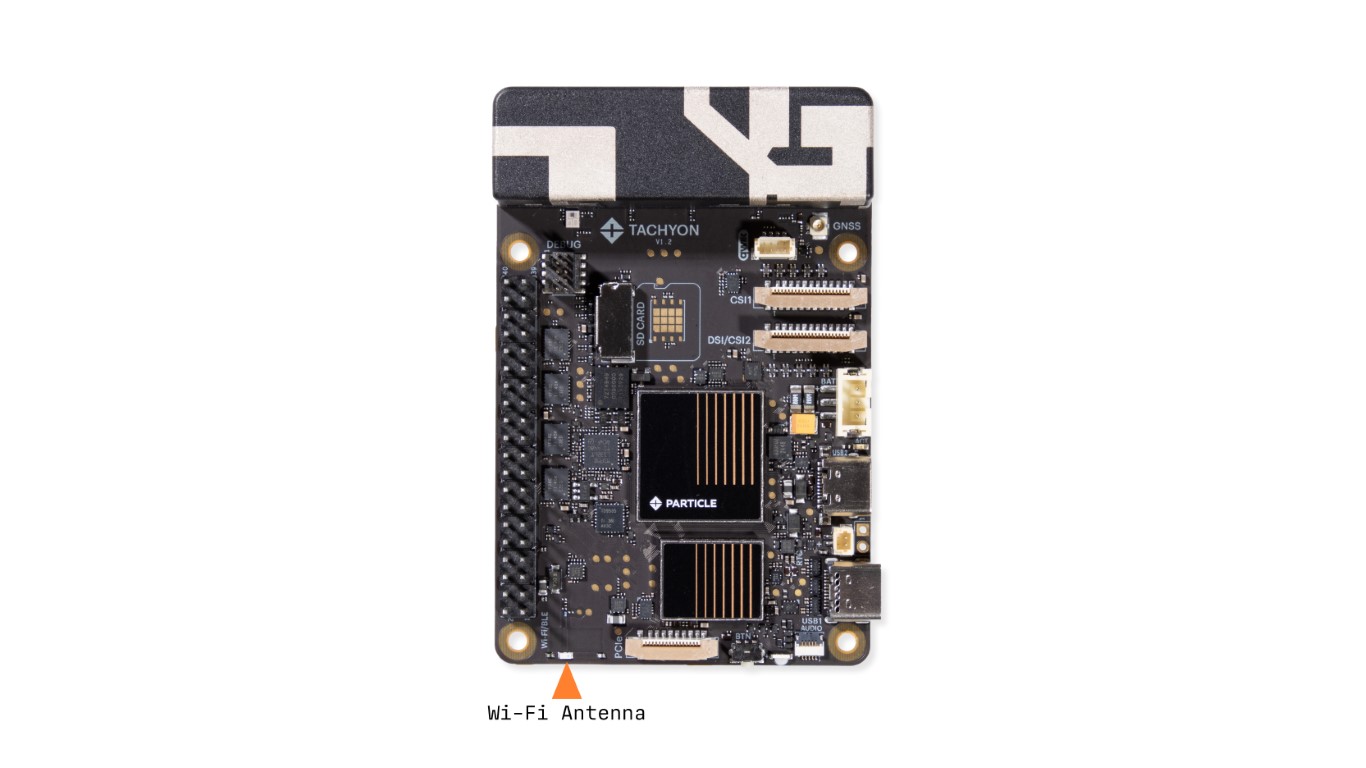
Overview
The Wi-Fi module in the QCM6490 supports the latest Wi-Fi 6E standard, allowing for faster speeds, improved security, and better performance in high-density environments.
Key Features of the QCM6490 Wireless Module
- Wi-Fi 6E (802.11ax) → Supports 2.4 GHz, 5 GHz, and 6 GHz bands.
- Multi-Gigabit Speeds → Faster data transfer and lower network congestion.
- PCIe Connectivity → The module connects to the main SoC via PCIe (1 of the 2 buses), ensuring high throughput.
- High Efficiency → Improved power management and network efficiency with Target Wake Time (TWT).
- OFDMA & MU-MIMO → Handles multiple devices more effectively, reducing latency.
- Advanced Security → Supports WPA3 encryption for secure network connections.
- Dual-band & Tri-band Support → Operates on 2.4 GHz, 5 GHz, and 6 GHz frequencies.
Wireless Bands & Performance
2.4 GHz Band
✅ Long-range
✅ Good penetration through walls
❌ Lower speeds compared to 5 GHz and 6 GHz
5 GHz Band
✅ Faster speeds
✅ Less interference compared to 2.4 GHz
❌ Shorter range than 2.4 GHz
6 GHz Band (Wi-Fi 6E)
✅ Ultra-fast speeds with low congestion
✅ Higher capacity for modern applications
❌ Limited support in older devices
🛠 Hardware & Interfaces
The Wi-Fi module is connected via PCIe, ensuring high bandwidth and reliable performance.
It is controlled through Linux drivers, which are included in Ubuntu 20.04 and later versions.
Key Interfaces
- PCIe → Primary communication interface.
- SDIO (Optional) → Alternate interface for embedded applications.
- GPIO Control → Used for power and reset functions.
Driver & Firmware Support
Tachyon runs Linux with built-in Qualcomm drivers for the Wi-Fi 6E module.
Checking Wireless Interface
To check if the Wi-Fi module is detected, run:
lspci
00:00.0 PCI bridge: Qualcomm Device 010b
If the output lists a Qualcomm Wi-Fi device, the module is recognized.
Restarting the Wireless Interface
If you experience connection issues, try restarting the Wi-Fi service:
sudo systemctl restart NetworkManager
or manually:
nmcli radio wifi off && nmcli radio wifi on
Note: If you are using a shell attached over Wi-Fi when you do this, it will disconnect...
How to Set Up WiFi on Your Device Manually
Creating a Simple Connection
nmcli device wifi connect YOUR_WIFI_NETWORK_NAME password YOUR_WIFI_PASSWORD ifname wlan0
Creating a Connection Using a Specific Security Scheme
nmcli connection add type wifi con-name YOUR_WIFI_NETWORK_NAME ifname wlan0 ssid YOUR_WIFI_NETWORK_NAME
nmcli connection modify YOUR_WIFI_NETWORK_NAME wifi-sec.key-mgmt wpa-psk wifi-sec.psk YOUR_WIFI_PASSWORD
nmcli connection up YOUR_WIFI_NETWORK_NAME
Viewing Network Information
nmcli connection show
Deleting a WiFi Network
nmcli connection delete id YOUR_WIFI_NETWORK_NAME
Scanning and Listing Local WiFi Networks
nmcli dev wifi rescan
nmcli dev wifi list
Disable WiFi low power mode (to speed up transfers but with increased power)
nmcli connection modify YOUR_WIFI_NETWORK_NAME wifi.powersave disable
Creating a WiFi Hotspot to Share the Built-in Cellular Connection
Create a Hotspot Network
nmcli dev wifi hotspot ifname wlan0 ssid tachyon password tachyon123
Configure Routing
sysctl -w net.ipv4.ip_forward=1

iptables -t nat -A POSTROUTING -o rmnet_data0 -j MASQUERADE

iptables -A FORWARD -i wlan0 -o rmnet_data0 -j ACCEPT

iptables -A FORWARD -i rmnet_data0 -o wlan0 -m state --state RELATED,ESTABLISHED -j ACCEPT

ip route add default via IP_ADDRESS_OF_RMNET_DATA0 dev rmnet_data0 metric 100

ip route del default dev wlan0

nmcli connection modify "Hotspot" ipv4.method auto

nmcli connection up "Hotspot"
Note in the above, IP_ADDRESS_OF_RMNET_DATA0 should be the interface IP address gotten from ifconfig for rmnet_data0 network interface.